Your house saves itself
Once your house has at least 3 walls (or 5 things in it), the app puts it in 📂 Projects a few seconds after you stop changing it. You don't have to remember. It's called House – Nov 28 (today's date) until you rename it in the name box at the top. The first time the app keeps a house for you, a small tip says so and points at that box. Each house is one entry in the list that gets updated as you work, not a new one every time.
A tiny sketch (a line or two) isn't kept. A template house, a lesson file or an old project isn't touched until you change something in it.
The orange dot on 💾 Save goes away on its own within a few seconds of your last change.
Save it yourself
You can still save by hand any time: it keeps the house right now, and it's the place to give it a name.
Click 💾 Save on the right rail, under File.
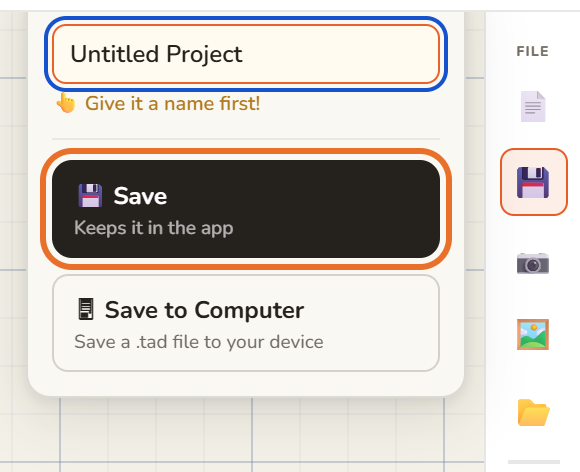
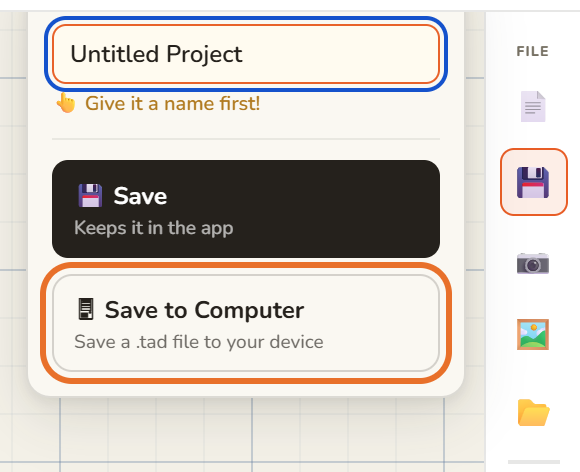
Give it a name. It starts as Untitled Project, and the box nudges you to change that.
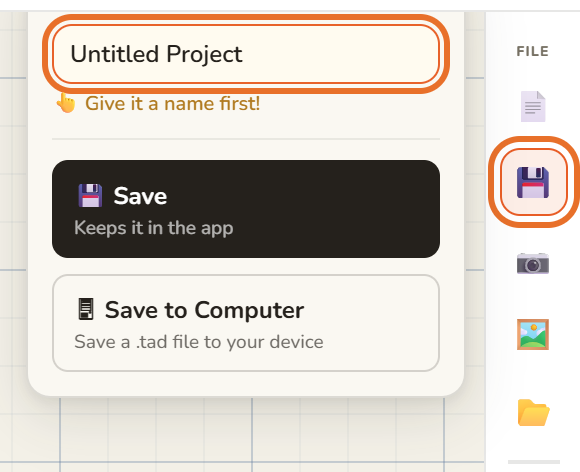
Click 💾 Save. It's kept in the app, in this browser, on this device.
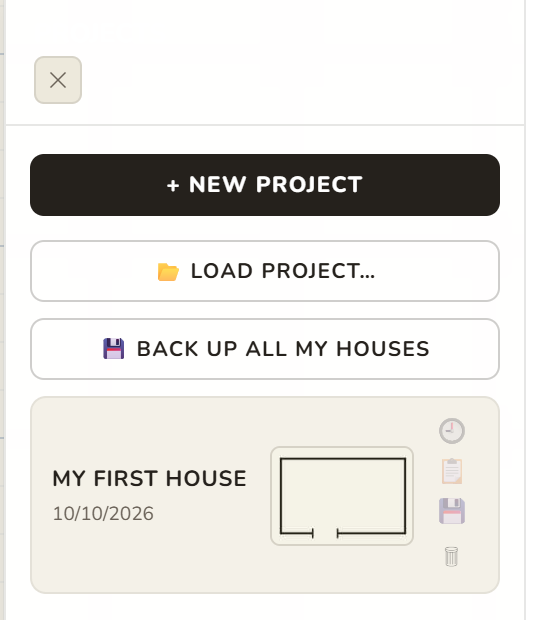
To open it again, click 📂 Projects on the right rail and pick it from the list.
Save a copy to your computer
In the same Save box, click 🖥 Save to Computer. You get a .tad file. It's your whole house in one file: every floor, wall, door and piece of furniture.
Keep it wherever you keep files. You can open it again on any computer: see Opening a .tad file.
Save to Computer if you'll use a different computer next time. Work saved in the app lives in that one browser. A school computer, a library computer or a private browsing window may not keep it.
Back up all your houses at once
- Click 📂 Projects on the right rail.
- Click 💾 Back up.
You get one file with every saved house in it. Its name starts with My Houses and ends in .tadpack. Keep it somewhere safe, or use it to move everything to another device. To bring the houses back, see Opening a .tad file.
If you haven't saved a house yet, it says "No saved houses to back up yet."
The backup
For work that's too small to keep, or if keeping it ever fails, the app also holds a backup copy. If you close the tab, next time you may see 🛟 We found unsaved work from… with a time. Click Restore to get it back, or Dismiss to leave it. A house that saved itself doesn't need this.
The backup is a safety net, not a save. Don't count on it.
Keep important work safe
Work saved in the app lives in this browser's storage. That's private, which is why there's no sign-in, but it can be lost:
- Clearing browsing data (or "site data") removes it.
- Private or guest windows forget everything when they close.
- A different browser, device or user has its own separate list. A house saved on one Chromebook isn't on the next one.
- Safari may clear a site's data after about a week without a visit.
The app asks the browser to keep its storage once you've saved something, which prevents most automatic clearing, but nothing survives a deliberate clear. If it matters, use Save to Computer. A .tad file is the copy that can't be lost with the browser.
In the Projects list
Houses are grouped by when you last worked on them: Today, This week (the last 7 days) and Earlier, newest first. If they all fall in one group there are no headings. Once you have more than 8 houses, a Find a house box at the top narrows the list as you type (it matches the start of each word in the name).
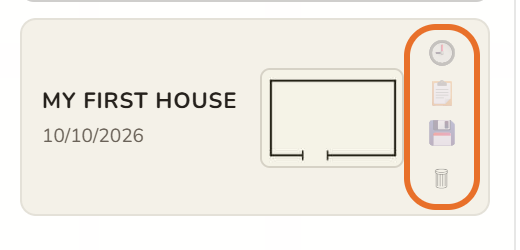
Each saved project has four buttons:
🕘 Earlier versions shows the older copies the app keeps: the last three versions it replaced, taken at least five minutes apart. Pick one to open it. Opening one doesn't change anything; press Save if you want to keep it.
Duplicate makes a copy, so you can try an idea without losing the original.
Save to Computer downloads its .tad file.
🗑 deletes it. The app never deletes a house for you, so delete the ones you don't want.