
A room name is a word on the floor plan. It doesn't change the room. It just tells you, and anyone looking at the plan, what the room is for.
Put one on a room
Open a room's palette on the left rail, such as Kitchen or Bedroom.
Pick a name from the last group, called Room Name.
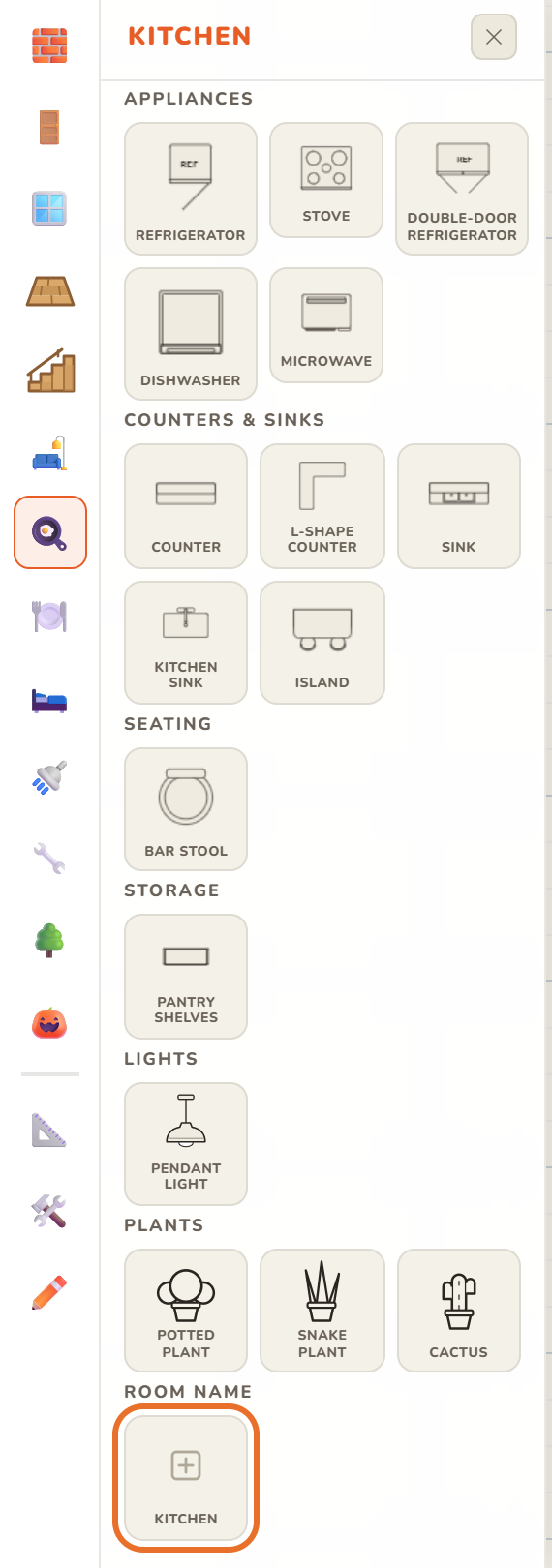
Click in the room. The name appears where you clicked, and it's selected.
The names that come with the app:
| Palette | Names |
|---|---|
| Living Room | LIVING ROOM |
| Kitchen | KITCHEN |
| Dining Room | DINING ROOM |
| Bedroom | MASTER BEDROOM, BEDROOM |
| Bathroom | MASTER BATH, BATHROOM |
| Other (the group is called Room Names) | LAUNDRY, GARAGE, CLOSET, OFFICE, HALLWAY, ENTRY, MUDROOM, PLAYROOM, BASEMENT |
With Snap on, the name lands on the grid.
Type your own (In Advanced)
Typing your own name is in Advanced: the ✏️ Room Label button only shows there. In Standard, use the Room Name tiles above, or search Find for "label" and tap Custom Label · In Advanced to switch.
Click ✏️ on the left rail. It's the Room Label button, below Measure and Modify.
Type the name in the box at the bottom. It says "Type label, then tap canvas…" until you start typing. A name can be up to 32 letters.

Click on the plan. You'll see ✓ click to place next to the box once there's a name to place.
Names always show in capital letters, however you type them.
Change it after
Click a name with the Select tool. A dashed box appears around it, with round buttons:
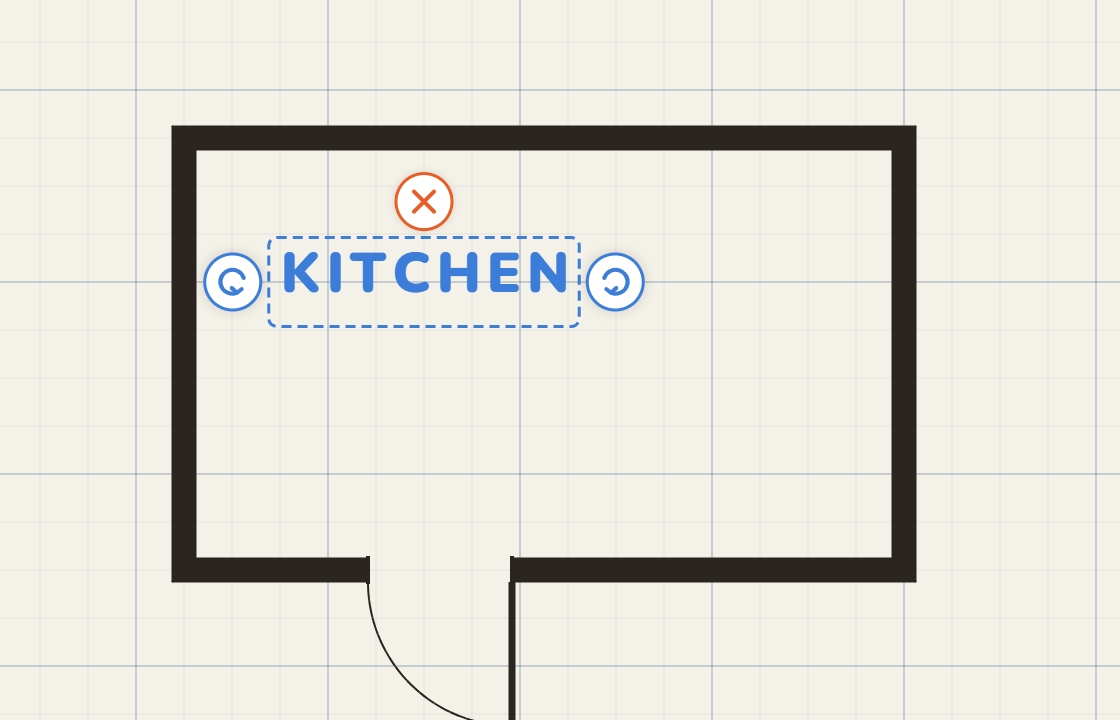
- The two arrows turn it 45° one way or the other.
- ✕ deletes it.
Drag the name to move it.
Good to know
- Names help Decorate for me. In Simple mode, the Decorate wand reads the name inside a room to work out what kind of room it is. A name with kitchen, dining, living, bath or bed in it works. See Decorate for me.
- The ✏️ button is in Advanced only, on the left rail, in Plan view only. Simple and Standard have no Room Label button. Names already on your plan stay and can still be moved, turned and deleted.
If something goes wrong
Nothing happened when I clicked. With ✏️, an empty box places nothing. Type a name first.
I clicked on an existing name and it didn't add a new one. With ✏️, clicking a name selects it instead. Click a spot with no name on it.