Drop a piece
Open a room's palette, like Bedroom or Kitchen.
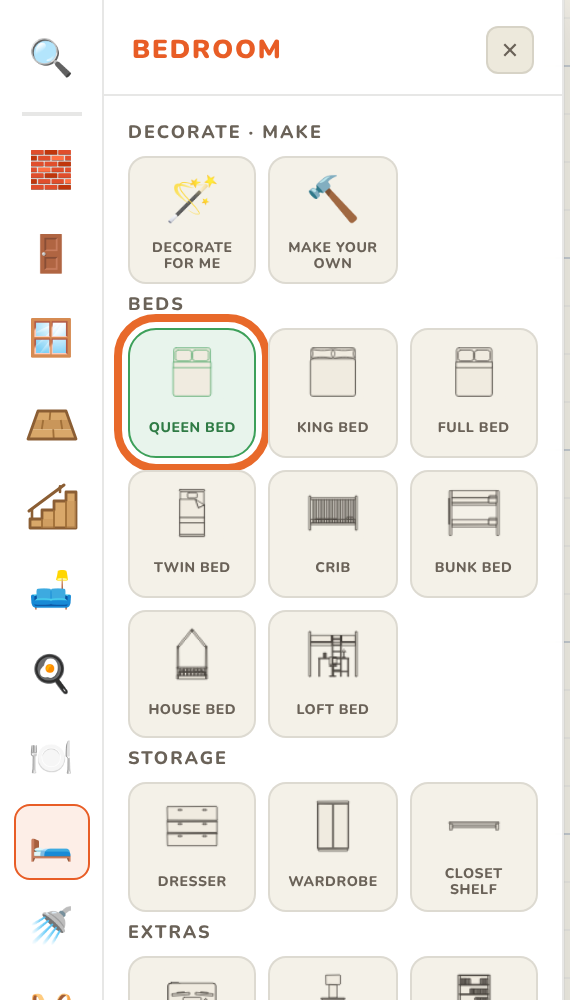
Pick a piece. As you move over the plan, a ghost of it follows the pointer at its real size.
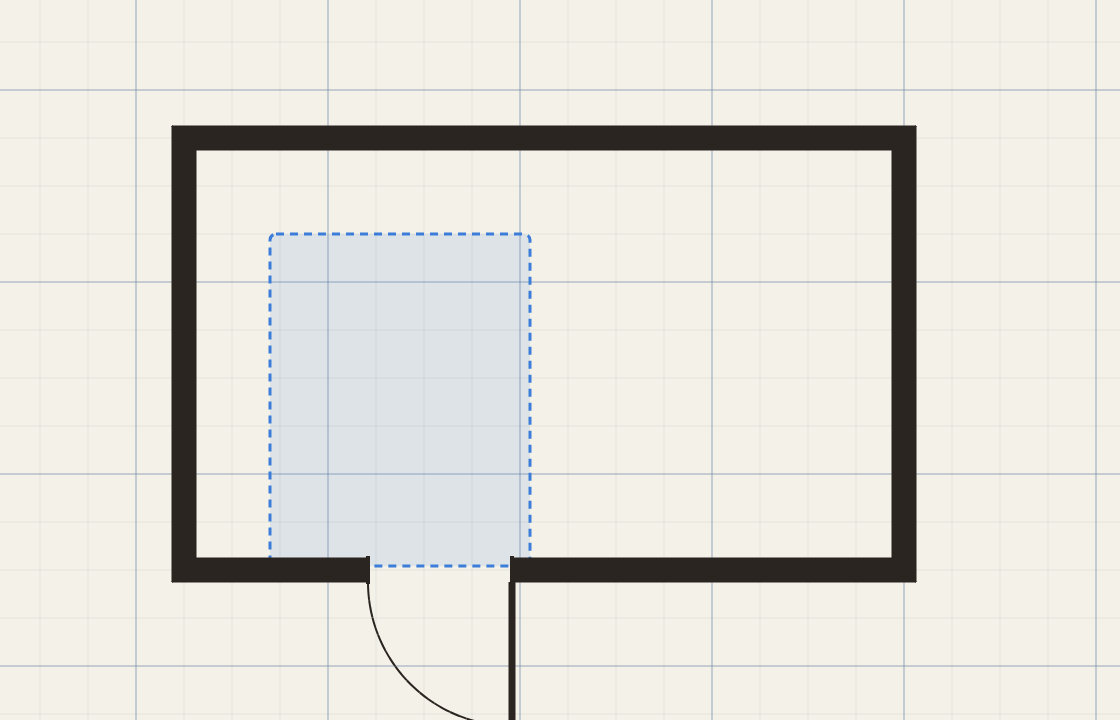
Click to drop it.
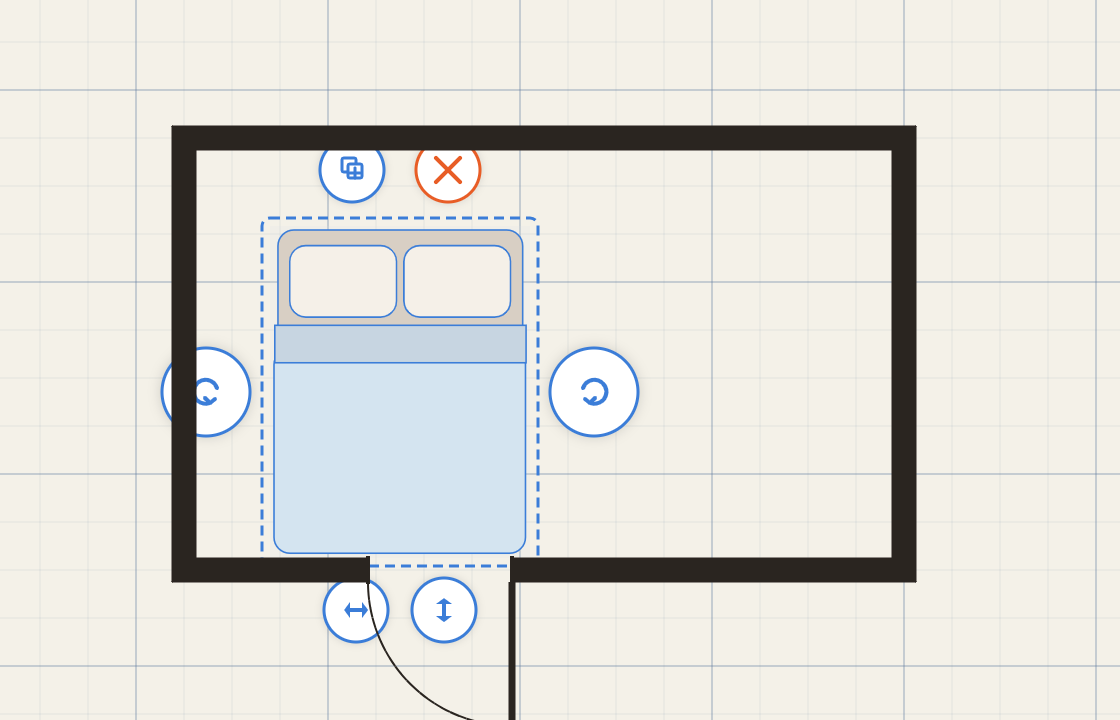
The tool stays picked, so you can click again to drop another. Clicking on a piece that's already there selects that piece instead, and switches back to the Select tool.
It snaps to walls
Drop a piece near a wall and it settles flush against the wall's face, so a bed or a sofa sits right up against it.
- Hold Alt while you click to drop it exactly where you are instead.
- To turn wall snapping off altogether, use Help → Settings → Tool Settings.
Real sizes
Every piece is drawn at a real size, in inches. A Queen Bed is 60 × 80, a Sofa is 84 × 36, a Toilet is 20 × 31. Every grid square is 1 foot, so you can count them.
To see a piece's size, click it. The bar at the bottom starts with its name and size, like Queen Bed · 60″ × 80″ (5′ × 6′8″): inches first, then feet and inches. For a counter or anything else you've made longer or shorter, it shows the size it is now.
To check a gap, use Custom Measure.
Color
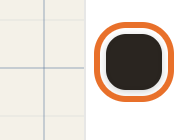
Pieces are drawn in your pen color. Pick it with the round color button at the bottom of the right rail before you drop a piece. Change the color while a piece is selected to recolor it.
Some pieces also show finish circles when you select them: counters, the island, sinks, beds, desks, the bookshelf, the fireplace and some kitchen appliances. A finish changes only the main part, like the cabinets or the bed frame, and leaves the rest as it was. Picking a color with the color button paints the whole piece instead.