
Which one
| Tool | Thickness | Use it for |
|---|---|---|
| Exterior Wall | 6″ | The outside of the house |
| Interior Wall | 4″ | Walls between rooms |
Both start 10 feet tall. See Plan and 3D to change a floor's wall height.
Draw walls
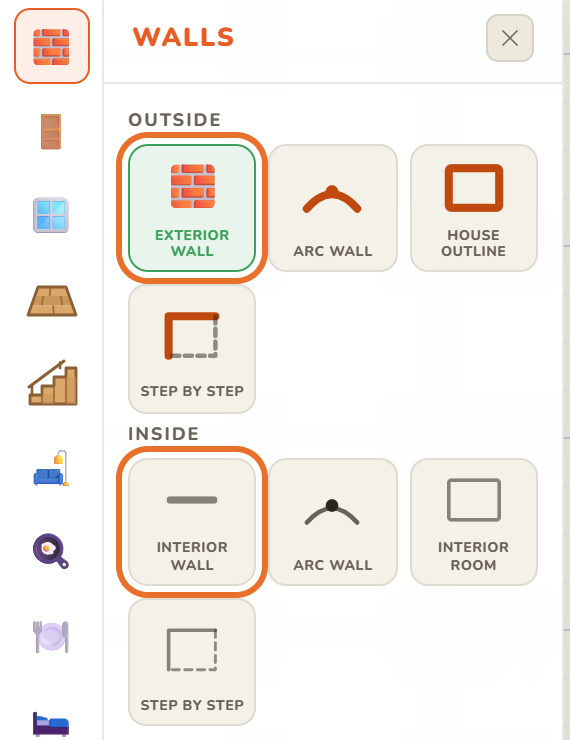
Pick Exterior Wall or Interior Wall from the Walls palette.
Click where the wall starts.
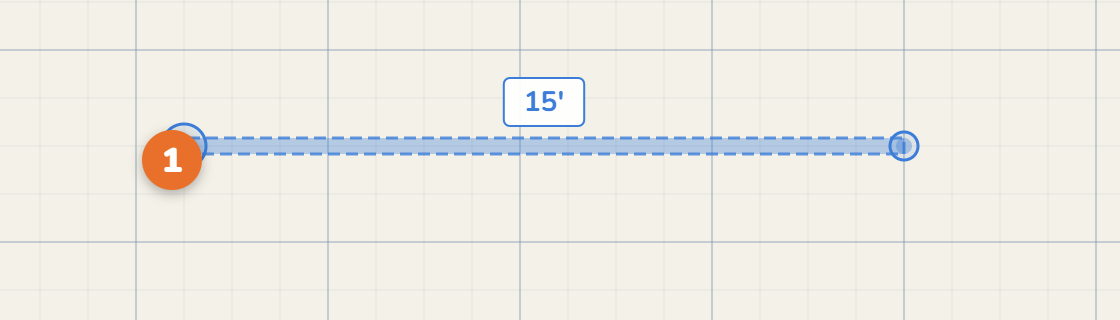
Click where it ends. With Chain on, the next wall starts right there, so you can keep clicking around a room.
To stop, double-click, press Esc, or end on an existing wall. Ending on a wall joins to it and stops the chain for you.
On a tablet, press where the wall starts, drag to where it ends, and lift. Each drag is one wall.
Type the exact length
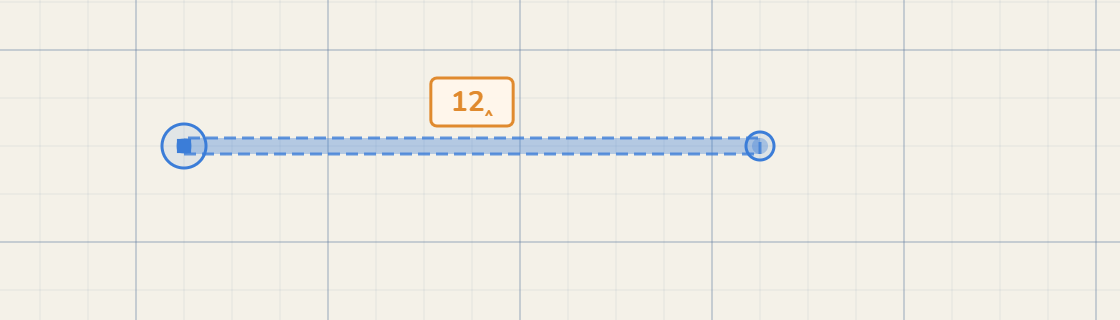
After the first click, type a length and press Enter. 12 is 12 feet; 12'6" works too. The wall goes the way the pointer is pointing.
Lining up with other walls
As you move the pointer, a light dashed line appears when the spot you're on is straight across from, or straight up and down from, the corner or end of another wall. The pointer is pulled gently onto that line, so the new wall lines up without counting squares.
- The lines only go to corners and ends of walls, never to the middle of one.
- Landing exactly on a wall, a corner or a middle point still wins. The lines help when you're on open floor.
- With Ortho on, a line never pushes the wall off straight.
- You also see them when you drag a wall's end later.
To turn them off, open Help, click ⚙️ Settings, open Tool Settings, and switch Alignment Guides to Off. The app remembers your choice.
The three switches
While a wall tool is picked, the bar at the bottom shows three switches. All three start on.
Snap catches the ends of walls, their middles, any point along a wall, and the grid.
Ortho keeps walls straight: either across or up and down.
Chain keeps drawing from where the last wall ended.

Turn Ortho off to draw a wall at an angle.