
Look something up
Tap 🔍 at the very top of the left rail. The Find panel opens, ready for typing.
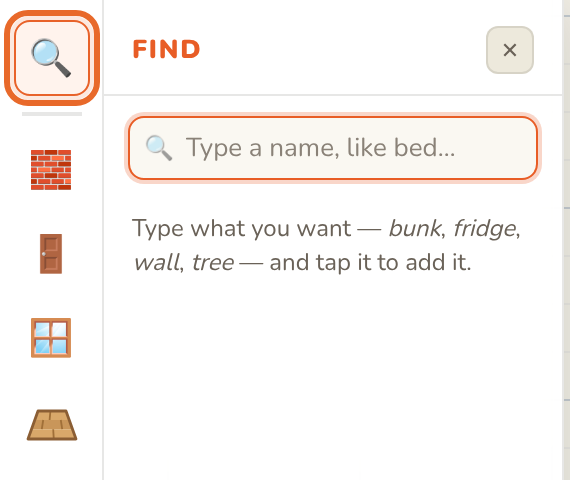
Type a word, like bed. Everything that matches shows up at once, under the palette it lives in, so you also see where to find it next time.
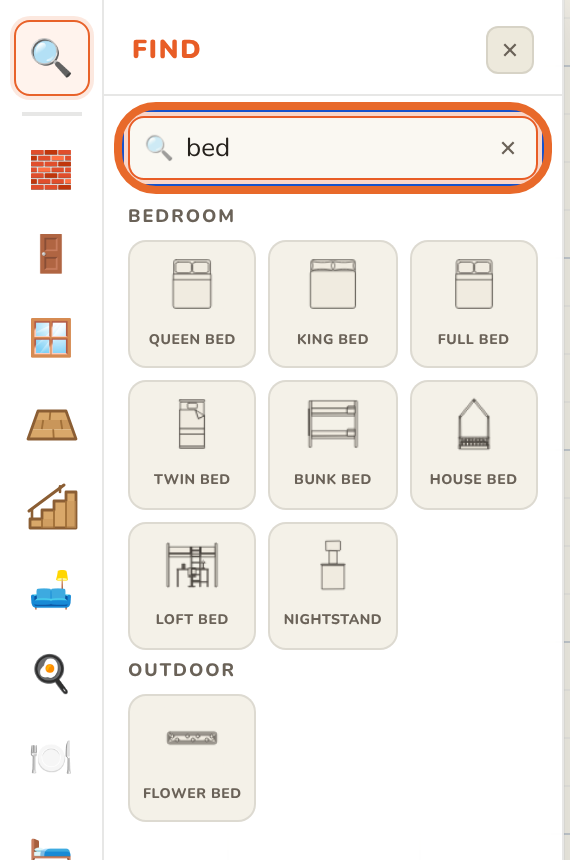
Tap a tile, then click the plan to place it, the same as from any palette (Placing furniture).
Open Find before you type anything and you'll see Recent: the last pieces you picked, from any palette, ready to tap again. Each room's palette lists its own recent pieces at the top too. The list lives on this device only, and Settings > Recent Pieces > Clear empties it.
Find stays open while you place, so you can look up the next thing straight away. Tap 🔍 again, or ✕, to close it.
What it finds
Furniture and things for every room, the yard, and the seasonal palettes while they're showing.
Doors, windows, stairs, floors, rugs, patios, decks, driveways, pools and fences.
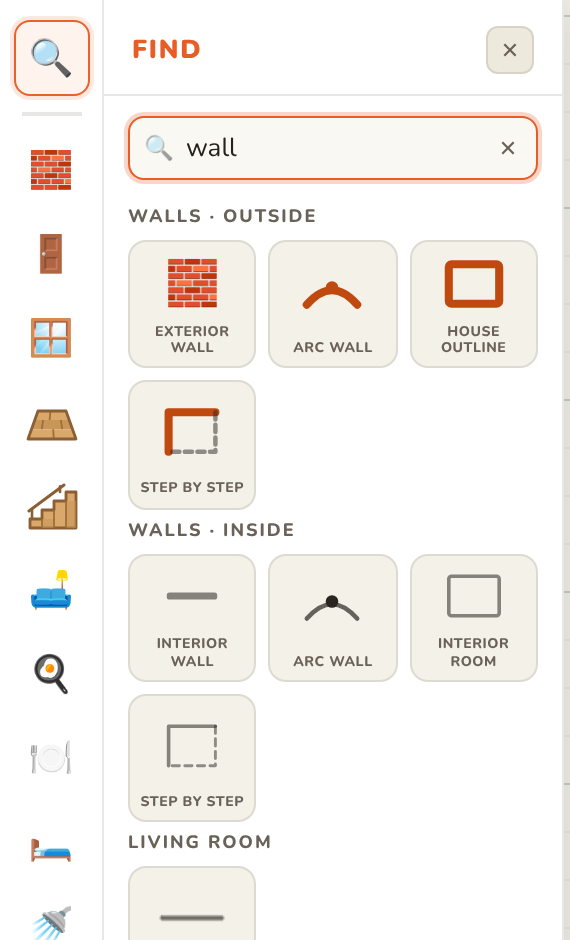
Walls. Type wall to see them all. Outside and inside walls both have a Step by Step and an Arc Wall, so they come under WALLS · OUTSIDE and WALLS · INSIDE. Type inside or outside to see just one set.
Find doesn't list Measure or room names as pieces. Those are on their own buttons lower down the rail.
At Standard, a few tools are hidden because they live in Advanced: Cut back, Stretch, Make a corner, Cut a wall in two, Mirror, custom roof shapes and yard height. If you type one of them, like mirror or slope, Find adds an In Advanced section after the normal results ("Mirror · In Advanced"). Tap it and the app switches you to Advanced and opens that tool. See Levels: Simple, Standard and Advanced.
Good to know
- Start of a word is enough. qu finds the Queen Bed, and qu be narrows it down to just that one.
- Everyday words work too: couch finds the sofas, fridge the refrigerators, bin the trash cans, tv both TVs.
- Esc clears the box.
- In Simple Mode, open the 🛋️ Furniture slice of the wheel and type in the Find box at its top. It searches furniture and the yard; walls, doors and floors have their own slices.
Nothing showing? Try another word for it: sofa or couch, tub or bath, fridge or refrigerator.