This is in Advanced. Simple and Standard don't show Mirror, on the left rail or in the bar above picked things. Click the level button at the top of the screen (it says Standard) and pick Advanced, or on a phone tap ⋯ More and use the Tools switch. Your house doesn't change when you switch: see Levels: Simple, Standard and Advanced. At Standard you can also type mirror in 🔍 Find and tap its In Advanced result.
Mirror makes a flipped copy of walls and furniture across a line you draw. Build the left half of a house, mirror it, and you have the right half.
A banner at the top of the plan walks you through three steps. Every step has a way back.
Mirror something
Click 🛠️ Modify on the left rail, then the Mirror tile. Modify shows in Plan view.
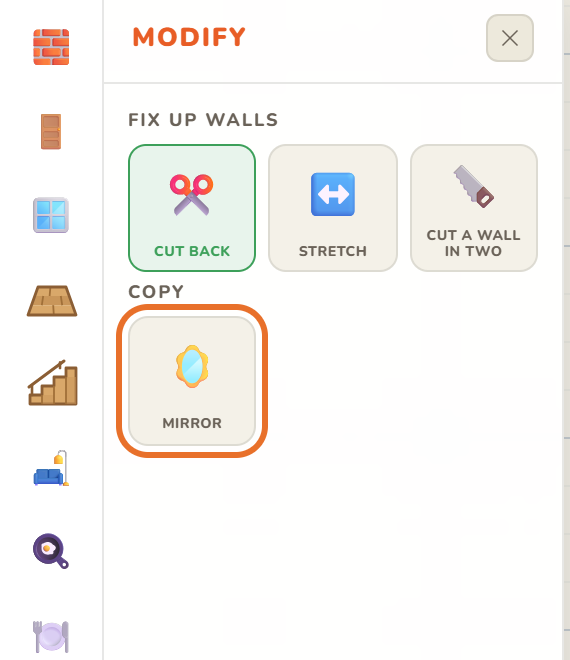
Step 1: pick what to mirror. Tap each wall or piece of furniture, or drag a box around several. Tapping a door picks the wall it's in. Tap a picked thing again to drop it. The banner counts what you've picked. When you're ready, click Next: draw the line.

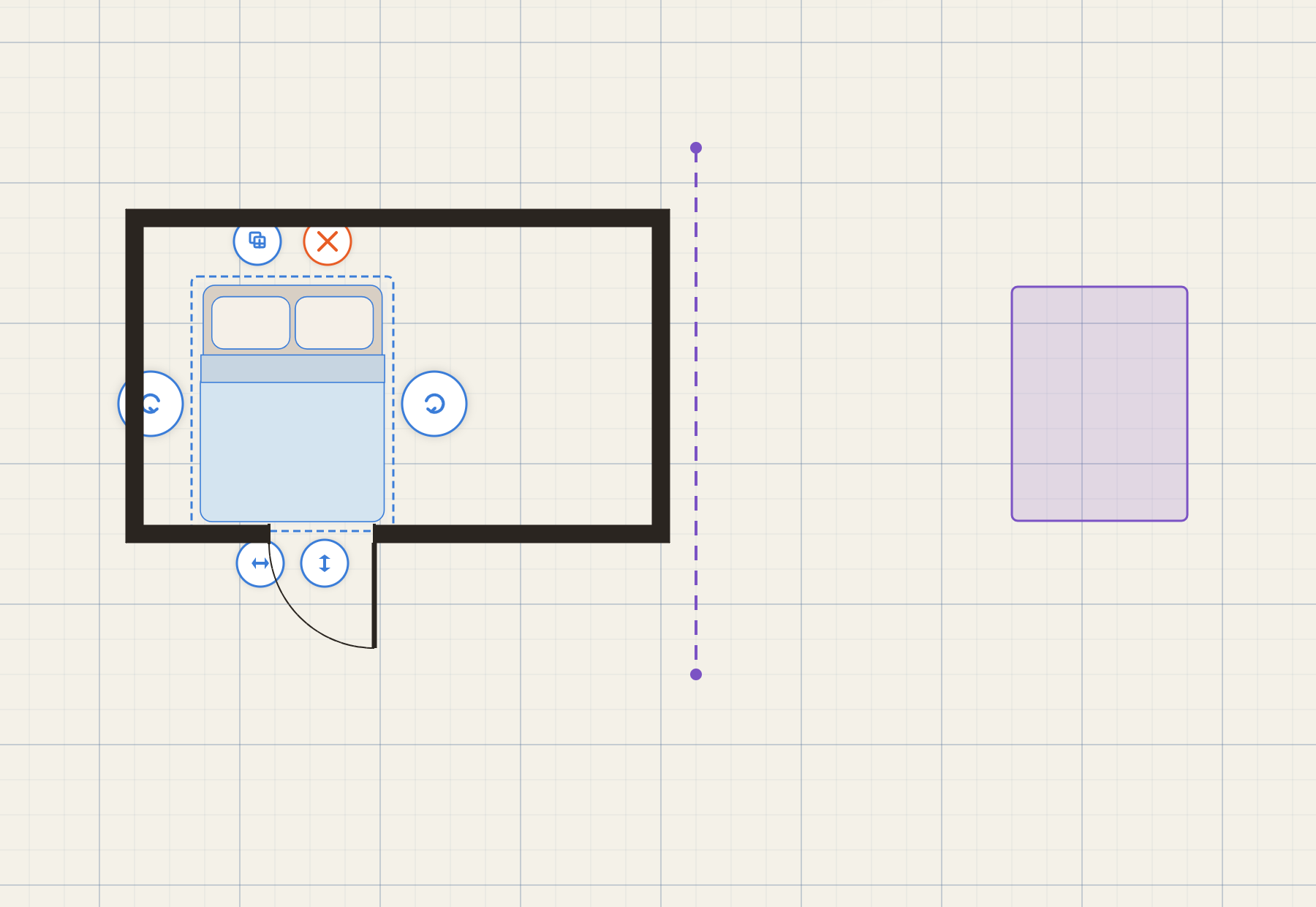
Step 2: draw the line. The banner says "Drag a line where the mirror should be — like folding paper." Drag it across the plan. It snaps to walls and corners.

Step 3: look, then decide. A ghost shows where the mirrored copy will land. Pick one:
- Keep both adds the mirrored copy and leaves what you picked where it is.
- Move it flips what you picked over to the other side. There's no copy.
- Redraw throws away the line and lets you draw another. What you picked stays picked.

After Keep both or Move it, you're back on the Select tool. A kept copy is selected, so you can drag it.
A shortcut
If you already have two or more things picked with the Select tool, click Mirror in the bar that appears above them. That starts the mirror at step 2, with those things already picked.
Good to know
- Fold along a wall to finish a house. Draw the line right along one of your walls. The line snaps to it. That wall doesn't get doubled: when you keep both, a copy that would land exactly on top of an existing wall is left out.
- Straight lines are easy. With Ortho on, the line swings to every 45°. Snapping to a wall or corner wins over that.
- Furniture faces the right way. A mirrored sofa is flipped, not just moved, so it faces the right way on the other side.
- Curved walls curve the other way. The bend is mirrored too.
- Doors and windows go with their wall. They land in the same spot along the mirrored wall, and their swing flips.
- One Undo takes back the whole thing, whether you chose Keep both or Move it.
Getting out
- Esc goes back one step: from the ghost to drawing a line, from drawing a line to picking, and from picking out of Mirror.
- Back in step 2 takes you to step 1. Done leaves Mirror from step 1 or step 2.
If something goes wrong
Next is grayed out. Nothing is picked yet. Tap a wall or piece first.
Nothing appeared when I dragged. A line shorter than 6″ is thrown away. Drag a longer one.
The mirrored half is in the wrong place. Click Redraw and draw the line somewhere else. The ghost moves as soon as you do.