
This is in Advanced. Simple and Standard don't show the 🛠️ Modify button. Click the level button at the top of the screen (it says Standard) and pick Advanced, or on a phone tap ⋯ More and use the Tools switch. Your house doesn't change when you switch: see Levels: Simple, Standard and Advanced. You can also type a tool's name in 🔍 Find at Standard, like cut back: it shows an In Advanced result, and tapping it switches you and picks the tool.
Modify holds the tools that change what you've already drawn. Four of them fix walls. Three are a single click on a single wall; Make a corner takes two taps. The last tile is Mirror.
Which tool for which problem
| What you see | Use | What it does |
|---|---|---|
| A wall pokes out past a corner | ✂️ Cut back | Click the bit that sticks out. It is cut off at the wall it crosses. |
| A wall stops short of another wall | ↔️ Stretch | Click the short wall. It grows to the next wall. |
| Two walls nearly meet at a corner | ✂️ Cut back or ↔️ Stretch | Click either wall near the corner. One click leaves a clean corner. |
| Cut back or Stretch picks the wrong wall to meet | 📐 Make a corner | Tap the part of each wall you want to keep. |
| One long wall should be two walls | 🪚 Cut a wall in two | Click where the cut goes. |
| A small orange ring on the plan | The tool that is on | Tap the ring to fix that spot. |
| The Floor tool says "The walls don't meet here." | Close it | Tap the button in the message. It joins the walls. Then tap the room again to fill it. |
Open Modify
Click 🛠️ Modify on the left rail, below Measure. Pick a tile from the group called Fix up walls.
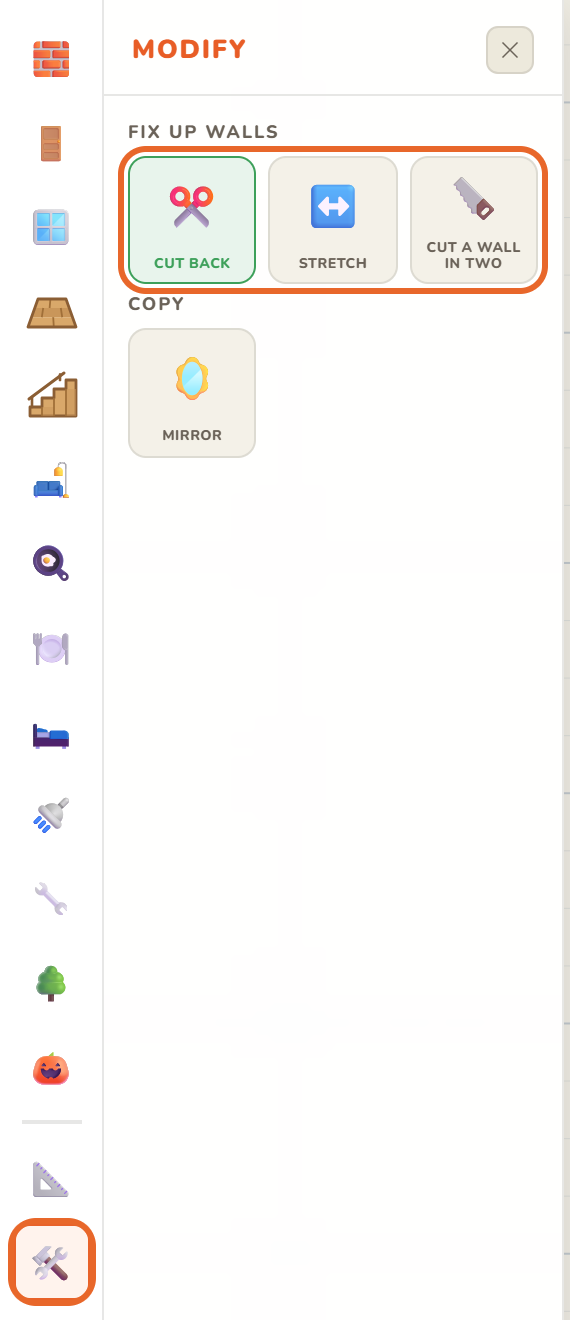
When Cut back, Stretch or Make a corner is on, small orange rings mark places that probably need fixing: a wall that stops just short of another, or a little piece of wall sticking out past a corner. Tap a ring and you see the same red and green preview as tapping that wall, then click (or tap Do it) to fix it. You never have to use the rings; you can still tap any wall. Cut a wall in two shows no rings, because cutting a wall in two fixes nothing.
A banner at the top of the plan says what to do next, and a Done button in it puts the tool away. So does the Esc key.
Cut back
- Pick Cut back.
- Point at the part of the wall you want gone. That part turns red.
- Click. The red part is removed, back to the nearest wall that crosses or touches it.
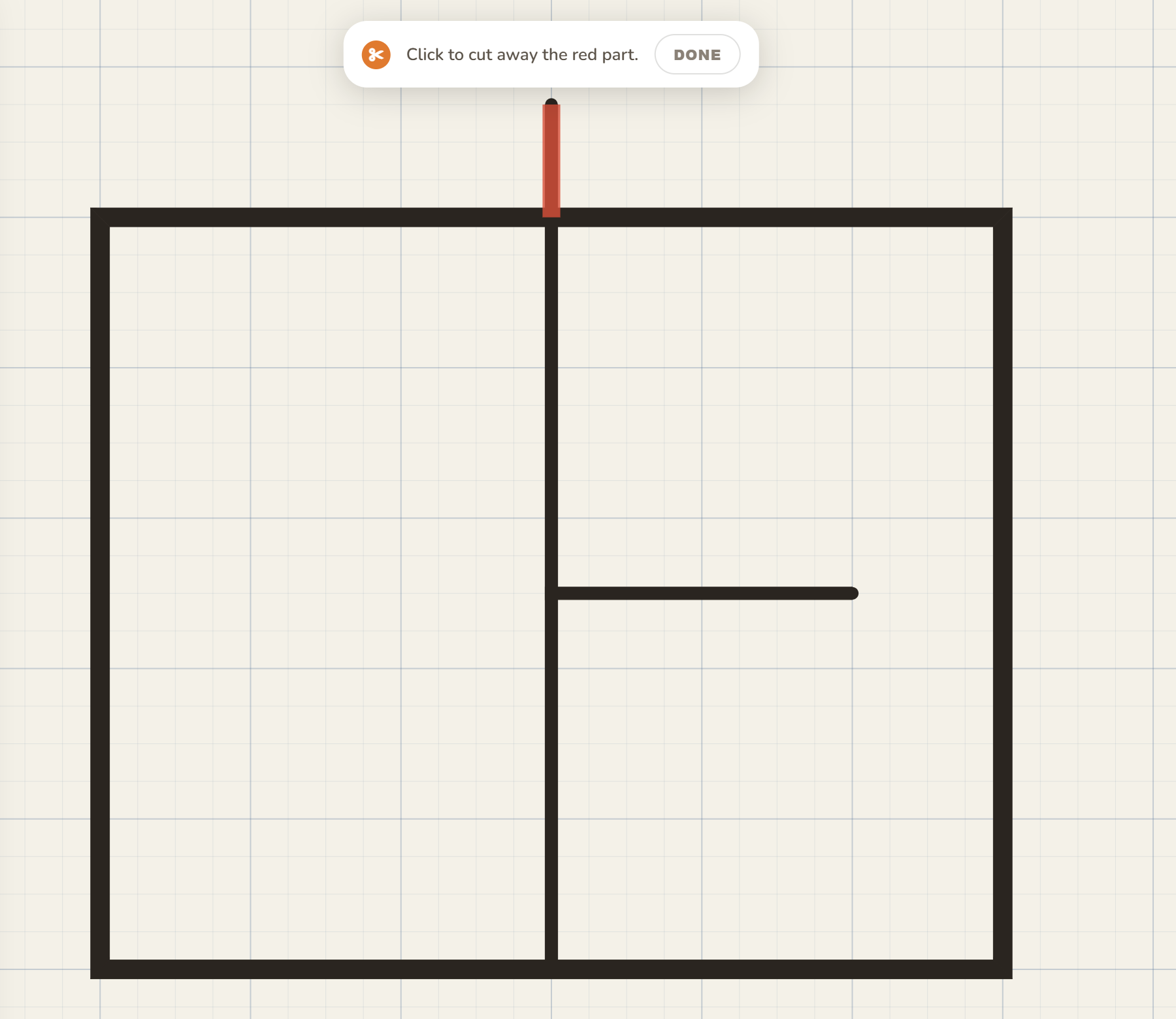
If the part you picked is much longer than a short end of the same wall, the tool asks first: Cut the long part or Cut the short end instead. That stops you from deleting a whole wall by mistake.
Which part goes depends on where you click. On a wall that sticks out past a corner, click the bit that sticks out. Click between two crossing walls and the middle is cut out, leaving a wall on each side.
Cut back also tidies a corner where two walls don't quite meet. Click either wall near the corner. Red shows what goes and green shows what grows, and one click leaves a clean corner.
Stretch
- Pick Stretch.
- Point at a wall that doesn't reach. A green dashed line shows how far it will grow.
- Click. The end nearest your click grows straight along the wall until it meets the next wall.
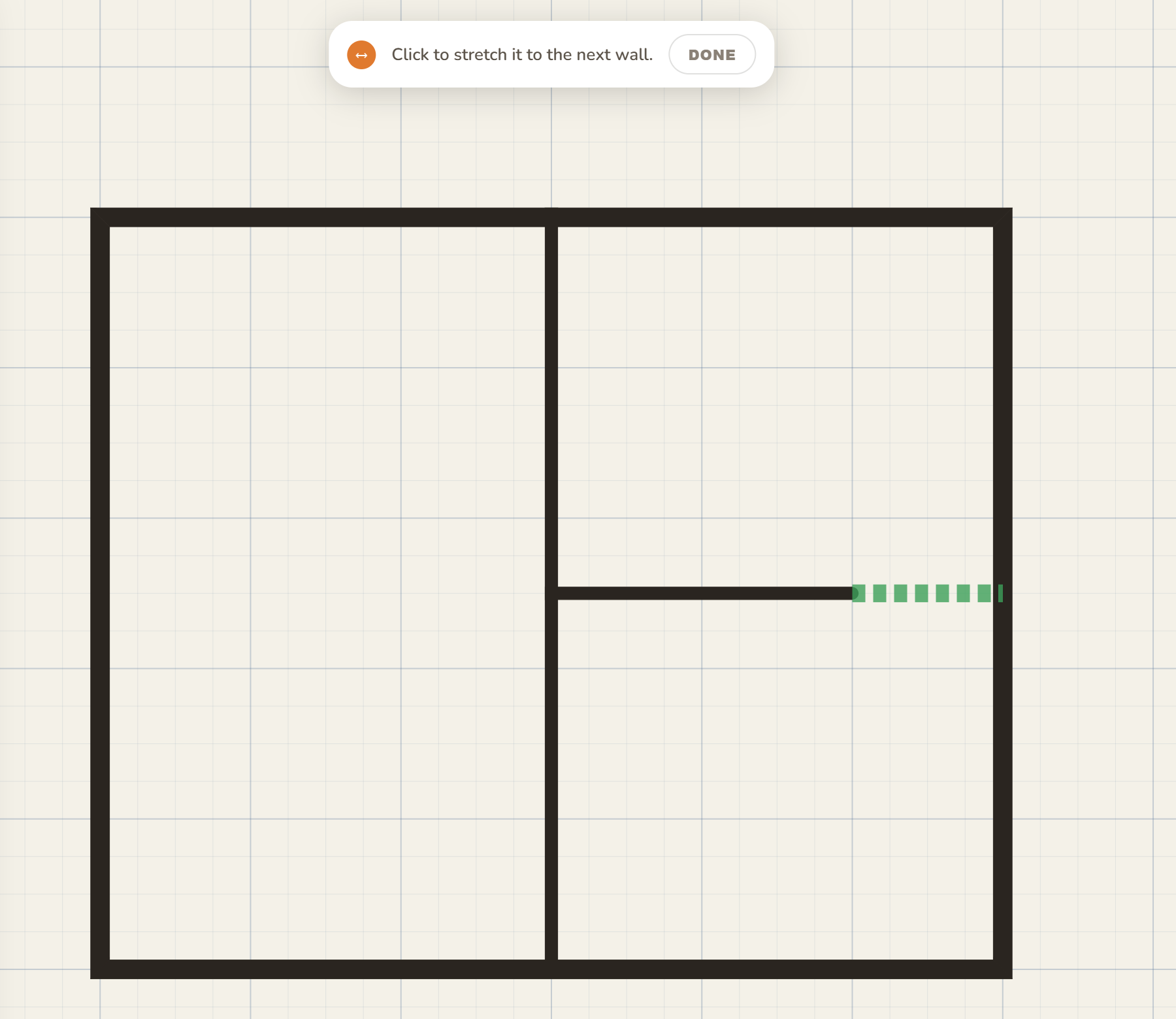
It only grows to a wall that is really in its way, and it tries the end nearest your click first, then the other end. Stretch also closes a corner where two walls stop short of each other (up to about 12 feet apart): click either wall and both grow to meet.
Make a corner
Cut back and Stretch stop at the first wall they meet. Make a corner lets you choose where two walls meet.
- Pick Make a corner.
- Tap the part of the first wall you want to keep. The wall lights up.
- Tap the part of the second wall you want to keep. Red shows what goes and green shows what grows.
- Click. Both walls are cut back or grown along their own lines until they meet in a clean corner.
The side you tap is the side that stays. It doesn't matter which wall you tap first. Tap empty space or press Esc to start over. Doors and windows stay where they are.
It won't make a corner from walls that run side by side, from curved walls, or from walls whose lines meet more than 200 feet away.
Cut a wall in two
- Pick Cut a wall in two.
- Point at the wall where you want the cut. A small mark shows the spot.
- Click. The wall becomes two walls, with a 6″ gap between them.
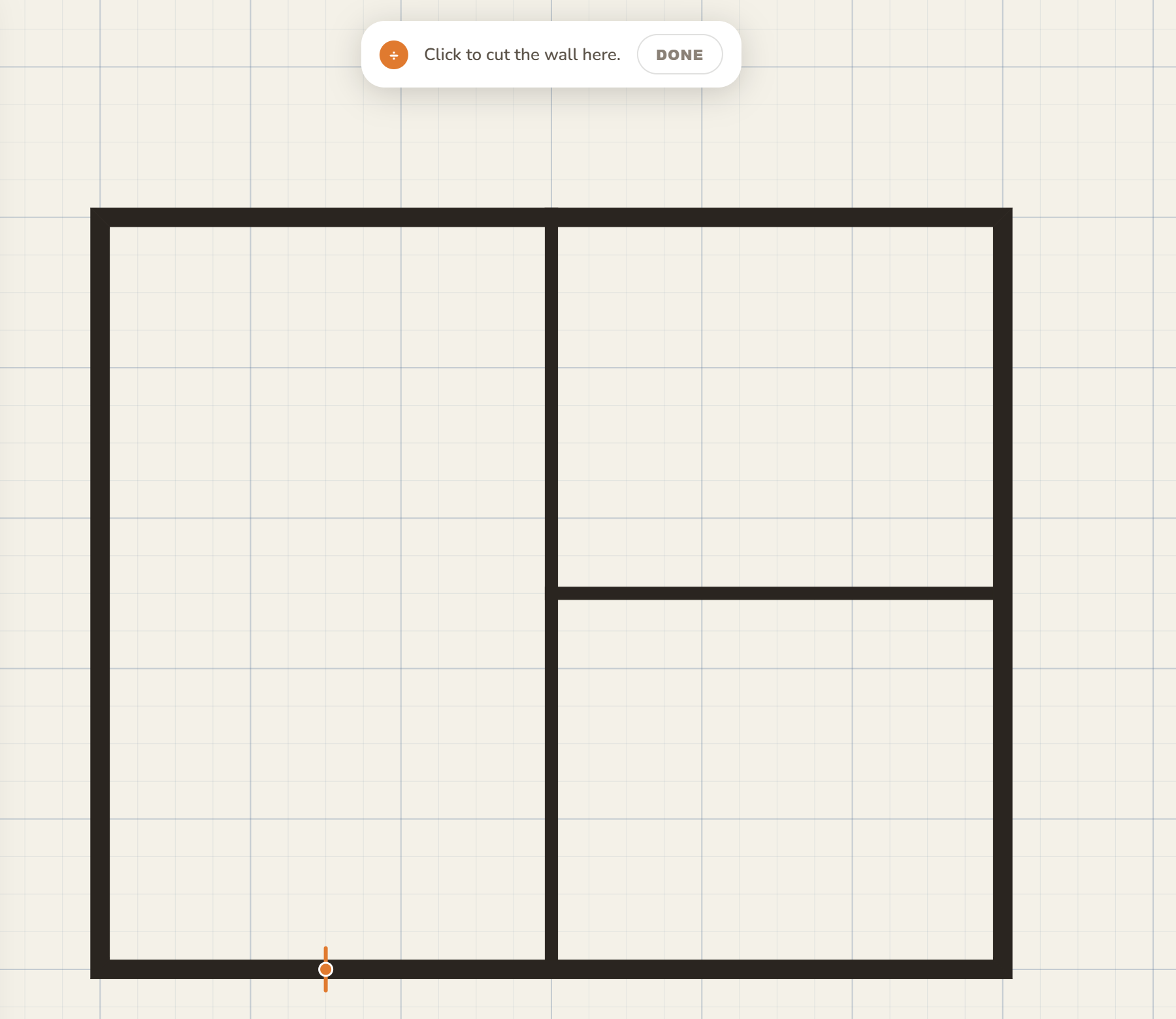
Each half is a normal wall now. You can drag, delete or change either one on its own: see Changing a wall.
On a tablet
There is no pointer to hover with, so it takes two beats (Make a corner needs a tap first, to pick the first wall). Orange rings work the same way, and their touch targets are bigger than they look.
- Press on the wall or on a ring. The red or green preview appears and follows your finger.
- Lift. The preview stays, and a Do it ✓ button appears beside it. The banner has one too.
- Tap Do it ✓, or tap the same spot again.
When a floor won't fill
The Floor tool needs walls that meet all the way round. If you tap a room that has a small gap, the message says "The walls don't meet here." with a Close it button, and a green dashed line shows the gap. Tap Close it and the walls are joined (one Undo). The message then says "Closed. Tap the room again to fill it." Tap the room again to lay the floor.
If no small fix would close the room, the message says "No closed room here. Walls need to meet all the way round." Then use Stretch or Make a corner on the walls that don't meet.
Good to know
- Doors and windows stay where they are. When a wall gets longer or shorter, its doors and windows don't slide. One that sat on a part you cut away goes with it.
- Each click is one Undo. After each one a small message at the top of the plan says what happened ("Cut back.", "Stretched.", "Corner made." or "Cut in two (small gap left).") with an Undo button. The button only works while that fix is still your newest change. You can also press Ctrl+Z, or ↩ on the right rail.
- Only the wall you click moves. Walls that were joined to the end you cut or grew stay where they are. They just aren't joined to it any more.
- The tool stays picked, so you can fix several walls in a row. Click Done when you're finished.
- A wall cut in two leaves an open room. The tool tells you about the gap before you cut. The 6″ gap means the room is no longer closed in, so a floor fill won't work there until you join the halves or put a wall across the gap.
- Curved walls can't be fixed this way. These tools work on straight walls. If you click a curved wall, the tool tells you so.
- Modify is in Advanced. Simple and Standard don't show it. Walls you've already fixed stay fixed at every level.
If something goes wrong
"Nothing to cut here. Try a wall that sticks out past another." Cut back needs another wall to cut to. To shorten a wall that stands alone, drag its end instead.
"This wall already touches the next one. Try another wall." It's already joined. Nothing to stretch.
"Nothing for this wall to reach." Stretch grows a wall straight along its own line, or closes a corner where two walls nearly meet. If there is neither, drag the end instead.
"The next wall is too far away. Drag the end of this wall instead." Stretch won't grow a wall more than 200 feet.
"Too close to the end. Click a little further along." A cut has to be at least 6″ from the wall's end.
"A door or window is in the way. Click another spot." A wall can't be cut through a door or window.