
Some things are easier to choose by looking at them: the curtains on a window, the color of the front door, the railing on a deck. Select lets you pick them right in 3D. Their options open in the bar at the bottom, the same ones you get on the plan, and you see each change on the house straight away.
Pick something
Click 3D in the bar at the top.
Click 👆 Select in the row of buttons. It lights up and now says Done.

Tap a window, a door, a stair, a deck or patio, or a driveway, pool or path. An orange box shows what you picked.
Change it in the bar at the bottom. For a window that could be its size, grid bars, curtains or shutters; for a door its color; for a stair its railings; for a deck its railings or a covered roof. A driveway, pool or path opens its own little panel at the top right instead (shape, color, or a path's material and width), with Delete and Done.
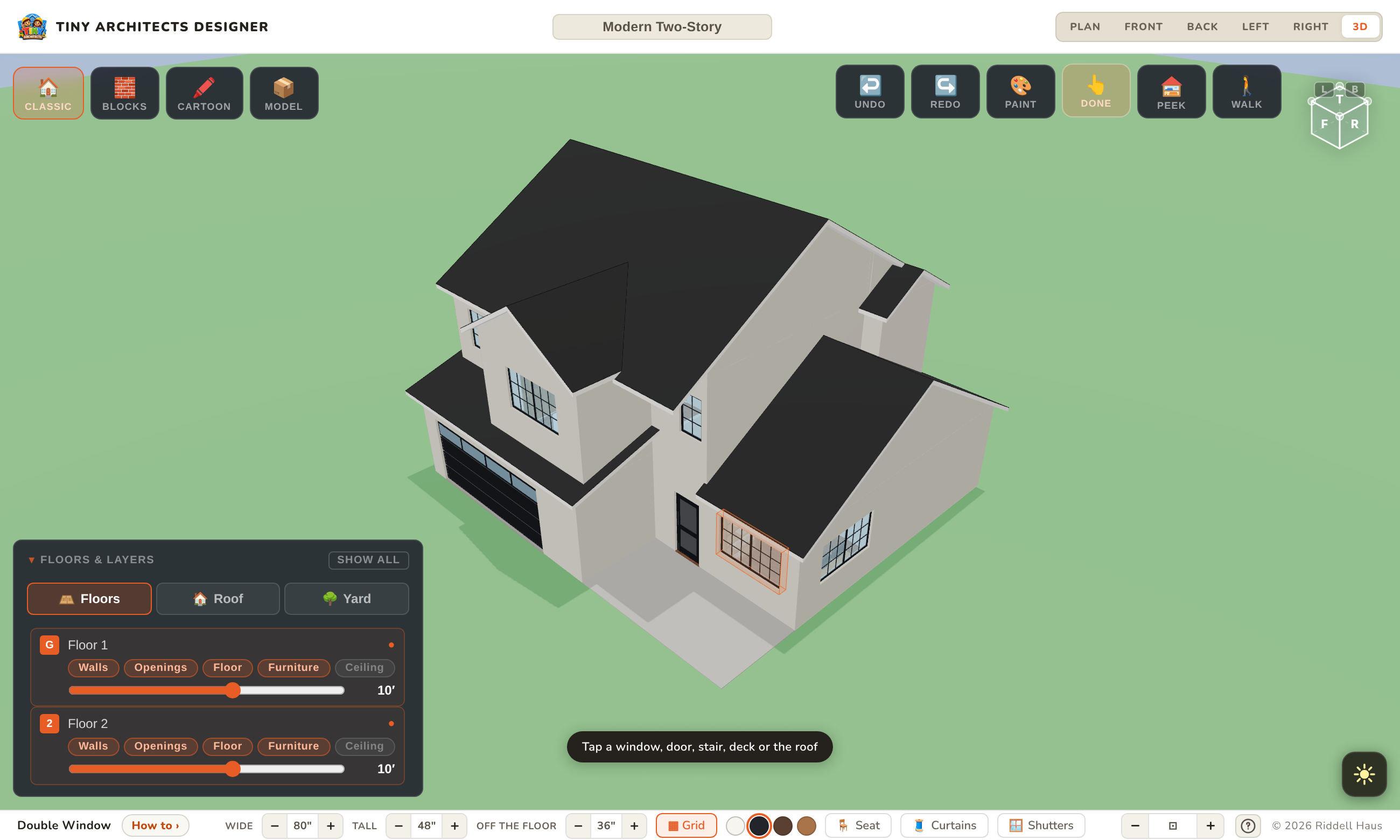
Dragging still spins the house. Only a quick tap picks, so you can turn the house between picks.
The roof
Tap the roof and the Floors & Layers panel opens on its Roof tab, where the roof's shape, slope and color are. See Roofs.
What you can and can't pick
| You can pick | You can't pick |
|---|---|
| Windows and doors | Furniture |
| Stairs | Walls |
| Decks and patios (and their stairs and porch roof) | Fences |
| Driveways, pools and paths | The grass |
| The roof (opens the Roof tab) |
Tapping something you can't pick, or the sky, just un-picks what you had.
To change furniture or walls, go back to Plan. To color walls in 3D, use Paint.
Good to know
- It finds the right floor for you. Tap a window upstairs and the app switches to that floor, so its options show.
- Click Done to stop selecting. Paint and Walk switch Select off too.
- Snapshot and + Museum hide while Select is on, so the orange box never ends up in your picture.