
The four stairs
| Stair | Width | What it looks like |
|---|---|---|
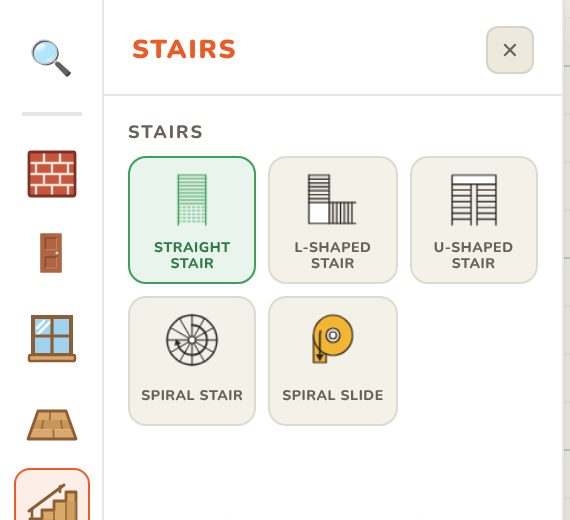
| Straight Stair | 36″ | One straight run. The longest: about 14′ 8″ on a standard 10′ floor. |
| L-Shaped Stair | 36″ | Two runs with a square landing where it turns left or right. |
| U-Shaped Stair | 72″ | Two 36″ runs side by side, turning back on itself. The shortest. |
| Spiral Stair | 60″ across | Wedge steps winding once round a center pole. Takes the least room: a square about 5′ on a side. |
You don't set the number of steps. The app works it out from how tall the floor is, using steps about 7″ high and 11″ deep. A standard 10′ floor gets 17 steps up.
Add a stair
Pick a stair. Open Stairs and choose Straight Stair, L-Shaped Stair, U-Shaped Stair or Spiral Stair.
Click on the plan where the bottom step goes. Click the spot where you'd step onto the stair. That's the middle of its bottom edge.
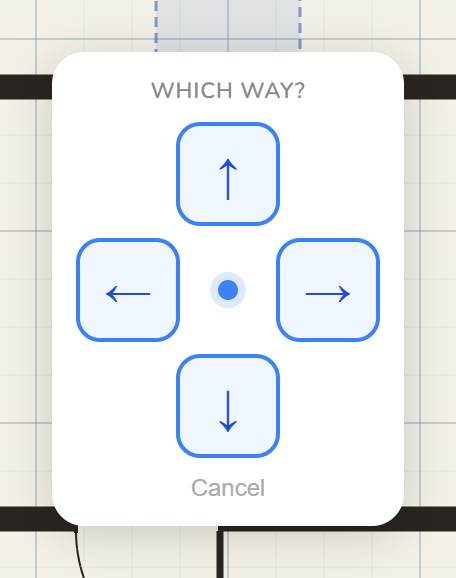
Choose which way it climbs. A picker asks WHICH WAY? with four arrows: ↑ ← → ↓. Pick the direction you'd walk as you go up.
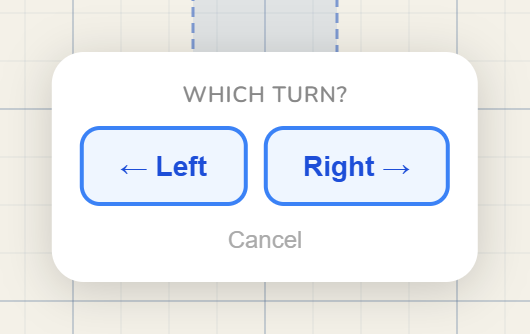
L-shaped and spiral only: choose the turn. The picker asks WHICH TURN? Pick Turn left or Turn right: for an L, the side the second run turns toward as you walk up; for a spiral, the way it winds as you go up. Straight and U stairs skip this step.
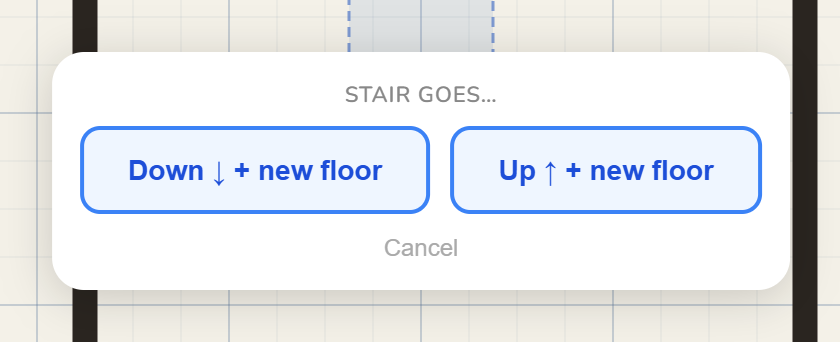
Choose up or down. The last picker asks STAIR GOES… Pick Up ↑ or Down ↓ (Up is first). If there's no floor there yet, the button says Up ↑ + new floor, and the app makes that floor for you. A spiral slide only goes down, so it asks SLIDE DOWN FROM THIS FLOOR? with one button.
Changed your mind halfway? Click Cancel in the picker, or click away from it, and nothing is placed.
Change it after
Click a stair to select it. Round buttons appear around it:
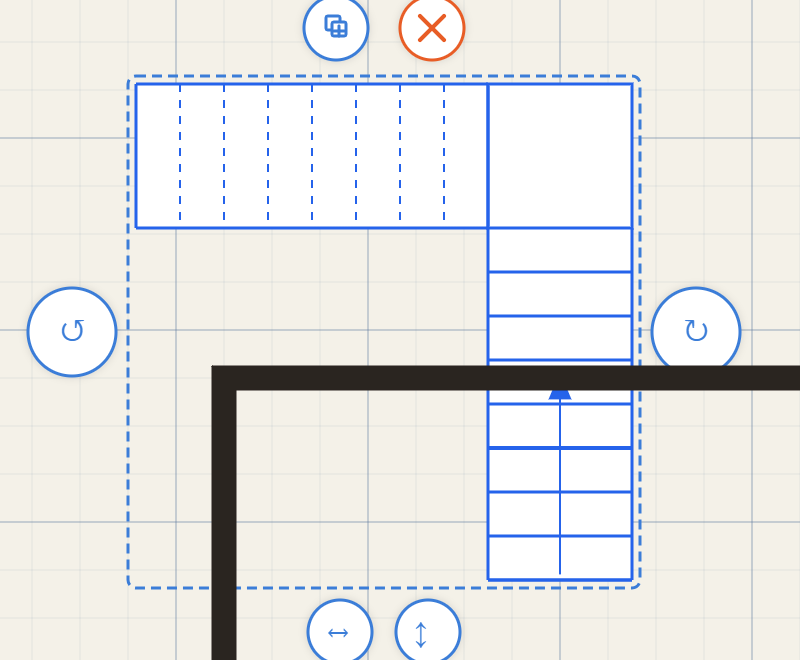
- Turn it left or right, a quarter-turn at a time.
- Flip it, either way, to mirror the direction it turns.
- Delete it. The floor it made stays, so you don't lose anything you drew up there.
Move it by dragging. Walls are magnetic, the same as for furniture: drag a stair close to a wall and its edge snaps flush against it. Hold Alt to drag it freely, or turn snapping off in Settings → Tool Settings.
Spiral stairs. For a spiral, the arrow you pick in WHICH WAY? is where the first step points, and you click the middle pole. Select it and use − and + in the bar at the bottom to make it 48″ to 72″ across. A spiral has just one rail, on the outside (the inside is the pole). Flip mirrors it so it winds the other way.
Top. Every stair has a Top button in the bar at the bottom, for what goes round its opening on the floor above: None, Railing or Half wall. Tap it to switch. It goes along the open edges of the hole, skips any edge where an upstairs wall already stands, and leaves the spot where you step off the top open. New stairs start with a railing. You see it on the upstairs plan, in 3D, and when you Walk it stops you falling into the hole.

Rails. With a straight, L or U stair selected, the bar at the bottom has Left and Right buttons, for each side as you walk up. Tap one to switch that side between None, Handrail (just a rail to hold) and Railing (a rail with balusters under it). The rail follows the stair round its landing. On the plan a railing shows as a thin line along that side, and a handrail as a dashed one. Switch to 3D to see them.
Good to know
- The new floor starts empty. No walls come up with it. You'll see a faint ghost of the floor below; trace your outside walls over it. See The Underlay.
- The stair shows on both floors. Downstairs it's drawn with an up arrow. Upstairs it's drawn with a down arrow, over the hole you came up through.
- You can go as high as Floor 3, plus one basement. Point a stair Down from the ground floor to make the basement.
- Taller floors make longer stairs. Change a floor's wall height with the slider on the Floors tab of Floors & Layers in 3D and every stair on that floor gets more steps.
- A floor with a stair on it can't be removed. Delete the stair first.
- In 3D, Walk climbs the stairs, so you can go from the front door to an upstairs room. The stair keeps you on it: you can't step off the side by mistake. To skip the stairs, tap a floor button (B, 1, 2) above the small map. See Walk and Peek.
- Spiral Slide. Stairs also has a Spiral Slide. You place it like the Spiral Stair, but the arrow you pick in WHICH WAY? is the way you shoot out at the bottom. In Walk, go upstairs and step into it, or just tap it, to slide down. (You can tap a Spiral Stair in Walk too, and it carries you up or down.) It only goes down, so you need a stair too.
If something goes wrong
The stair is red and says there is already a stair there, or a wall is in the way. A stair can't sit on another stair or have a wall through it. The direction or turn you picked is refused: pick another way, or move the stair.
I clicked and nothing appeared. The stair isn't placed until you've answered every picker. Look for the arrows around where you clicked and finish the steps.
The stair is too long for my house. A straight stair on a 10′ floor is almost 15′ long. Swap it for an L-Shaped or U-Shaped Stair, which fold the same steps into less length.
I made a floor I didn't want. Press Ctrl+Z. If the stair is already gone, an empty top floor or basement can be removed from the floor buttons.