
Both start from the 3D view. Click 3D in the bar at the top first.
Peek
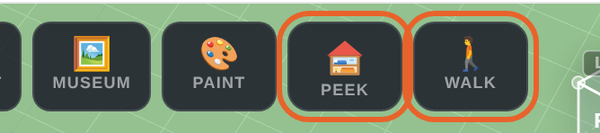
Click Peek in the 3D panel.
The roof comes off, and the outside walls on the side facing you disappear, so you can see straight into the furnished rooms. Spin around the house and the walls nearest you keep opening up. Inside walls, floors and furniture always stay.
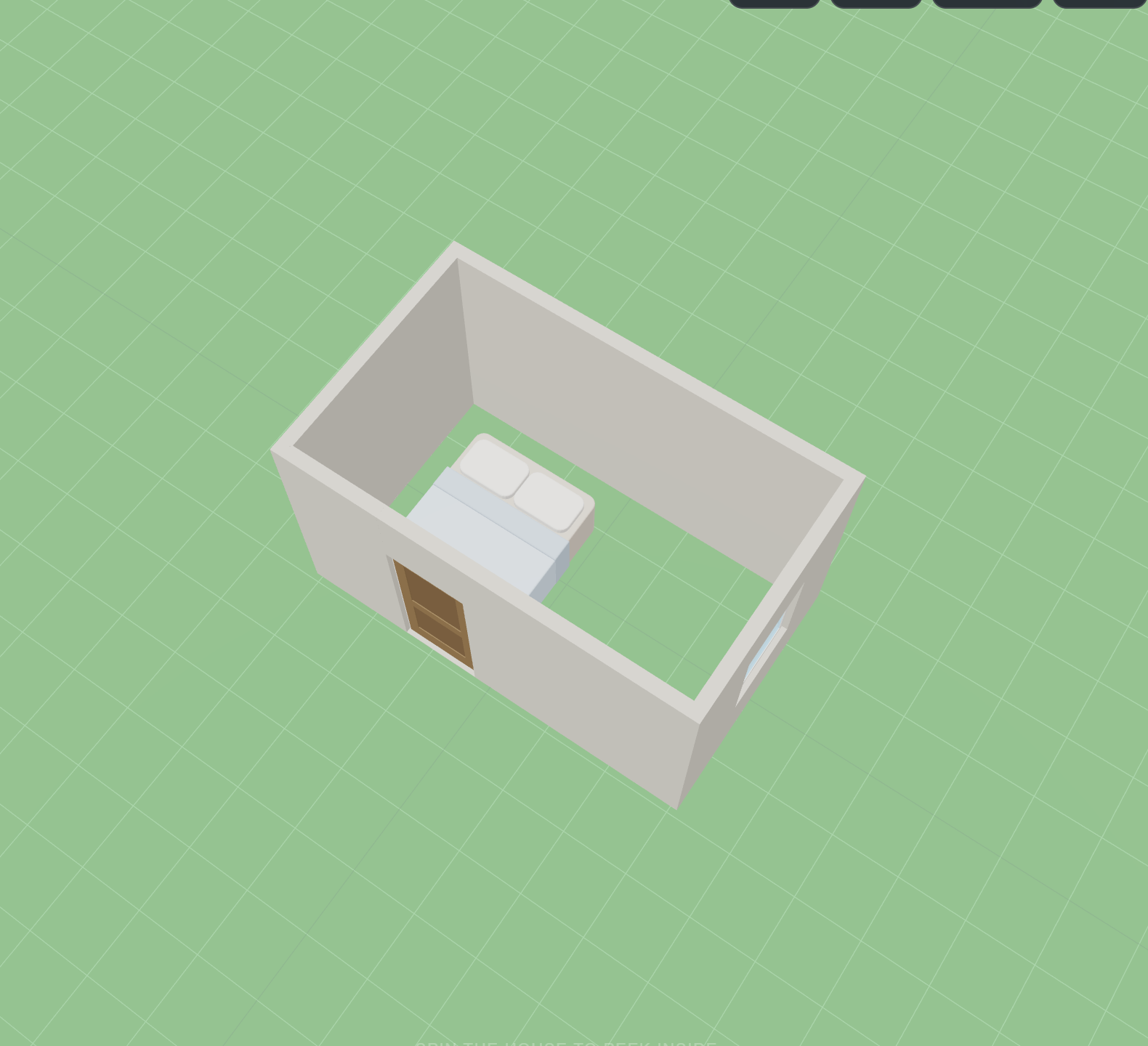
Click Close to put it back.
Peek works in the Classic and Cartoon styles. Switching to Blocks, or to a side view like Front, closes it.
Walk
Click 🚶 Walk in the 3D panel. You're inside the house, at eye level, on the ground floor.
| On a computer | On a tablet | |
|---|---|---|
| Walk | W A S D or the arrow keys, or the on-screen pad | The joystick |
| Look around | Drag | Drag |

While you're walking:
Click a door to open it.
Walk up the stairs to go to the next floor. The stair keeps you on it, so you can't step off the side.
Spiral stairs and slides: just tap them. Stand near a spiral stair and tap it to be carried up (or down, from the floor above). Tap a spiral slide from the floor above to ride it down. You can still walk them yourself.
Tap a floor button above the small map (B for a basement, 1, 2…) to jump straight to that floor without the stairs. The floor you're on is orange. You land in a clear spot in a room.
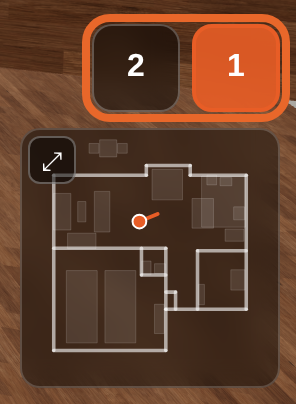
On a touch screen, tap the small map and it opens big, with the furniture drawn faintly. Tap the spot you want to go to. With a mouse, click the small map to jump straight there, or click the little ⤢ button in its corner to open the big map.
On the big map, tap a spot to jump to it. If you click on a wall, a stairwell, a gap over a two-story room or a piece of furniture, you land on the nearest clear spot instead. Out in the yard works too (but not in a pool or on a fence).
Furniture is solid. Beds, sofas, tables, counters and the like stop you, and you slide along their sides. Ceiling lights, pictures on walls, rugs and small things on tables don't, and a tree stops you only at its trunk. Turn this off in Settings, Tool Settings, Furniture Blocks You in Walk.
Change how tall you are: Adult, Kid, Toddler or Pet.

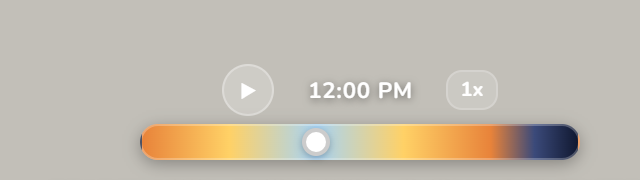
Slide the time of day to watch the light change.
Every room's ceiling shows, even ones hidden in the 3D view.
Click EXIT to go back to the 3D view. If you started walking by tapping a room on the Model, EXIT takes you back to the Model.