
In the 3D view, click the sun button to open Sun Position.
Move the sun
The round panel is the sky seen from above, with N, E, S and W around its edge. The dot is the sun.
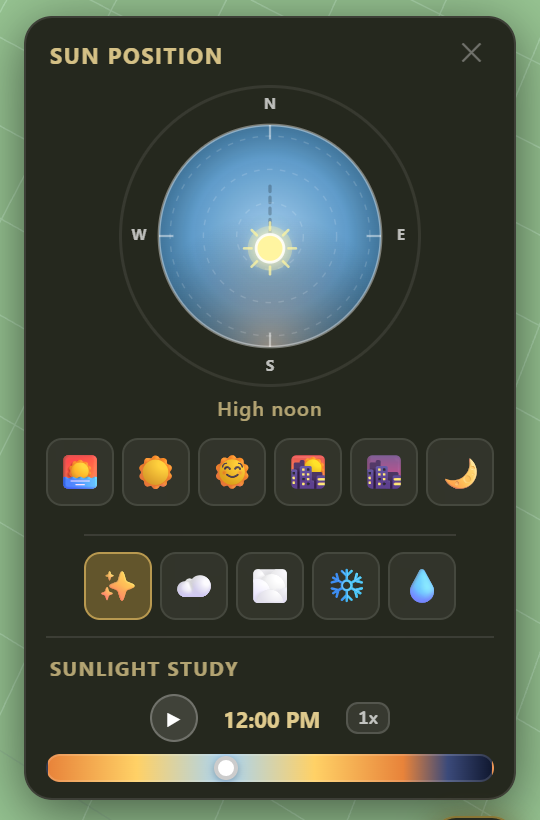
Drag the dot. Around the edge changes the direction it shines from. Toward the middle makes it higher in the sky, and the shadows shorter.
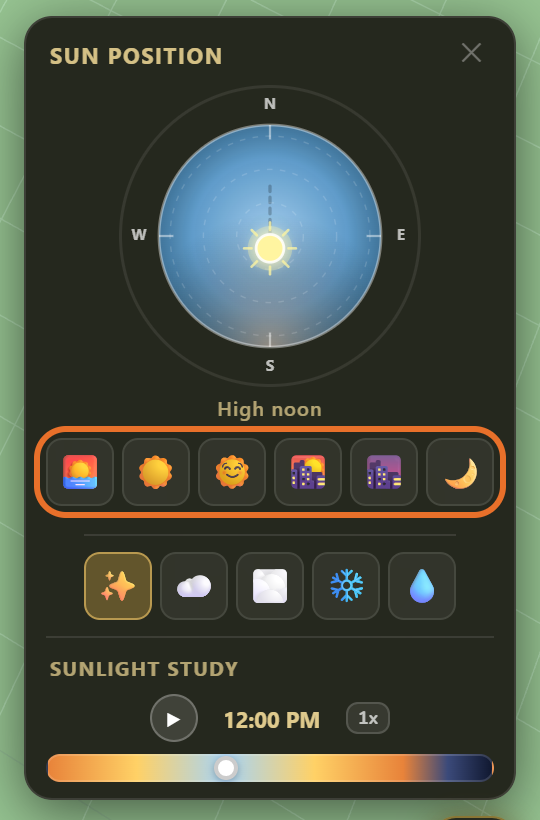
Or tap a time: Sunrise, Morning, Noon, Afternoon, Sunset or Night. Each button shows its name under its picture.
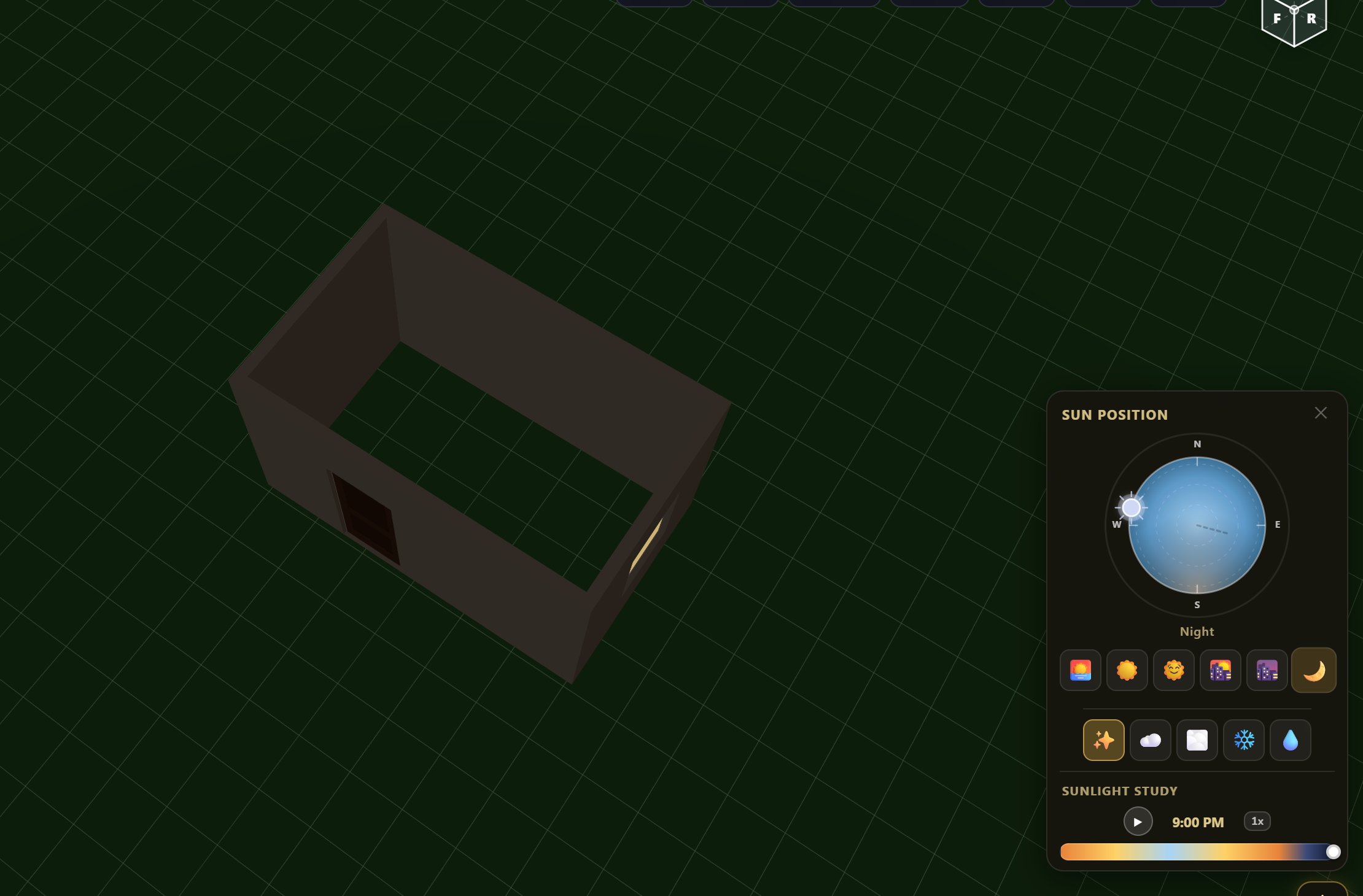
At night the sky goes dark and the house's windows light up from inside.
Play a whole day
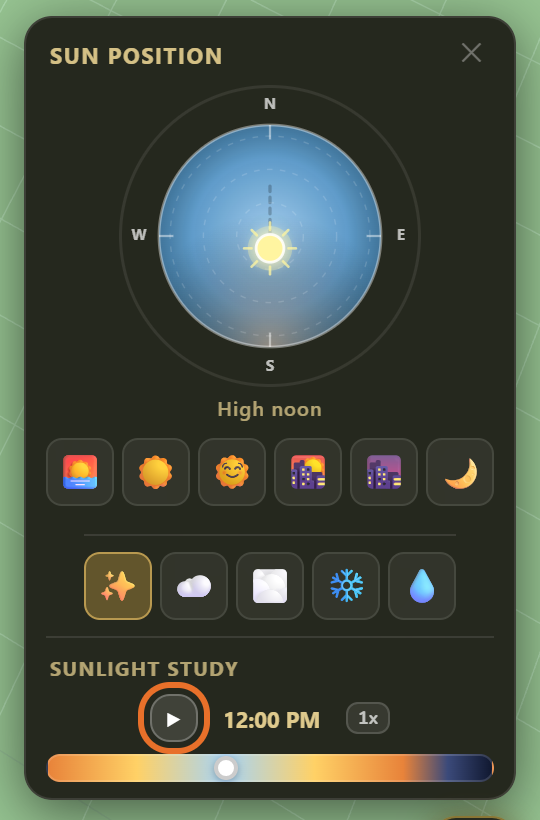
Under Sunlight Study, press ▶. The sun moves from morning, through sunset, into the night, with the time shown as it goes. Press the speed button to make it faster, and ⏸ to stop.
The weather
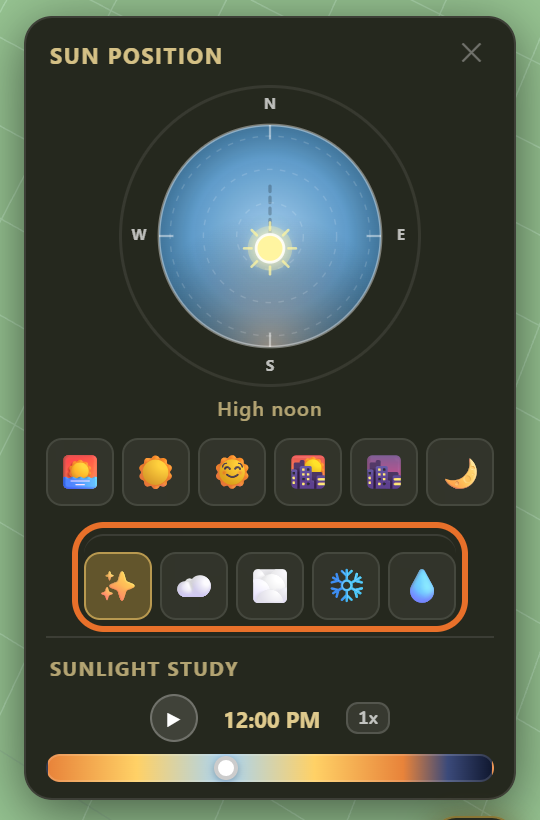
The buttons under the times set the weather: Clear, Overcast, Fog, Snow or Wet. Weather and time of day are separate, so you can have a foggy sunset.
The compass doesn't turn. To see how a house would do facing another way, draw it turned.